
WinX iPhone Ripper for Mac, specially designed for Mac user to rip and convert any kind of DVDs. Normal DVD, CSS protected DVD, region 1-6, Sony ArccOS, and commercial DVD can be easily ripped to iPhone, iPad, Apple TV, iTunes on their Mac Mac OS X. Meanwhile, this powerful iPhone ripper enables users to convert and rename DVDs in batch mode, split favorite video clips to convert and customize video and audio parameters to control output quality and image size. In a word, this iPhone ripper would be your best choice of ripping DVDs to Apple devices with fast speed and high quality.
WinX iPhone Ripper for Mac User Guide
How to Rip DVDs to iPhone, iPad, Apple TV, iTunes with This DVD to iPhone ripper for Mac Software?
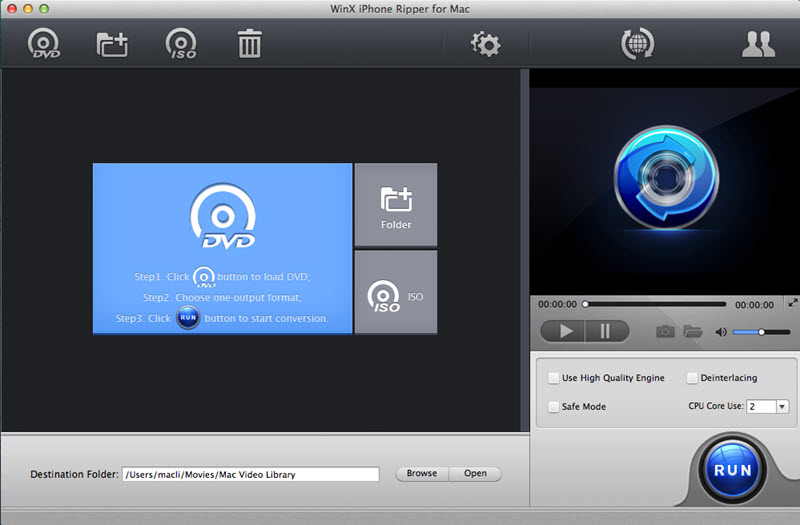
Step 1: Import DVD movies.
Download, install and run WinX iPhone Ripper for Mac on your computer. You can load DVD disc, DVD folder or DVD ISO image by clicking "DVD", "+", or "ISO" button in the main interface.
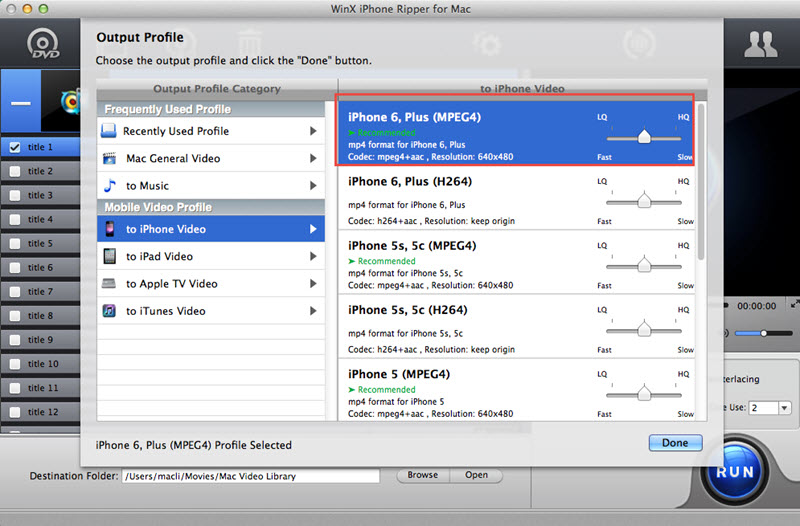
Step 2: Select output format according to your needs. You can rip DVD on Mac to iPhone, iPad, Apple TV, MP4, MOV, M4V, etc. Here I take ripping DVD to iPhone 6/6 Plus for example. Please select "to iPhone Video" -> "iPhone 6, Plus (MPEG4)". Then, click "Done" button.
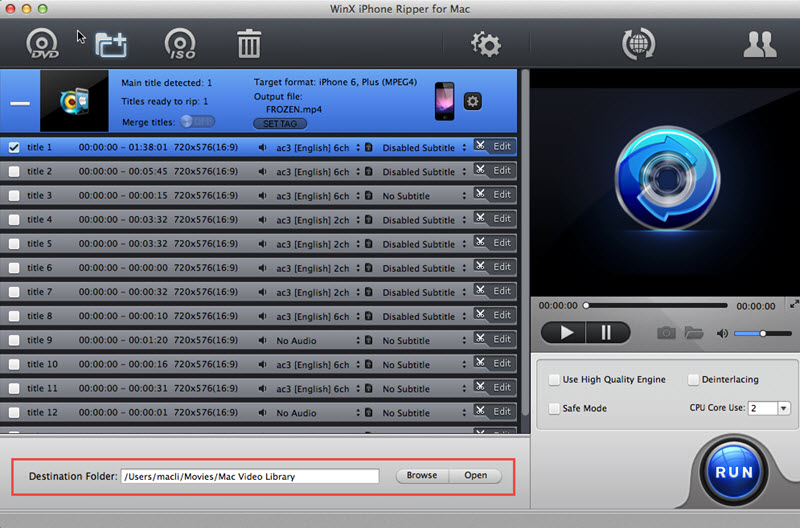
Step 3: Choose Destination Folder to save the ripped dvd video by clicking "Browse".
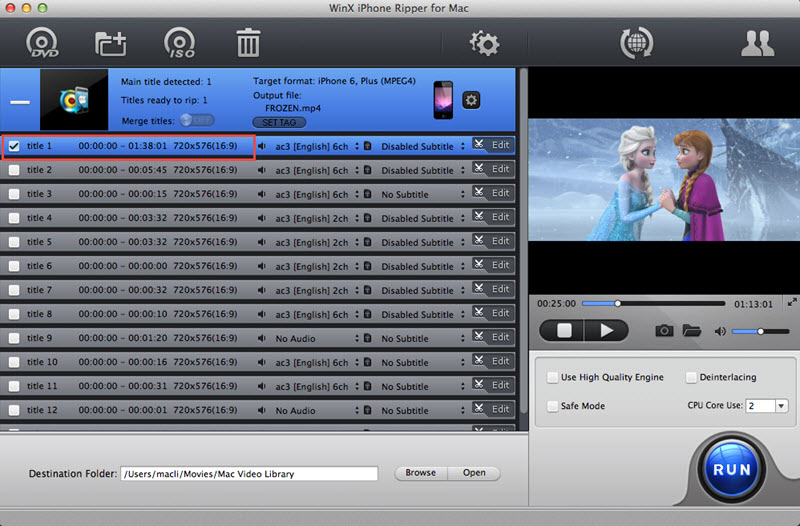
Step 4: Click "RUN" button to rip DVD to iPhone .
How to Rip DVD if Your DVD is Adopted with the Latest DVD Copy Protection?
The lastest protected DVD by Disney, Paramount and Warner usually has 99 titles and the DVD movie size is larger than 40 GB. WinX iPhone Ripper for Mac can perfectly remove such strong DVD Copy Protection. After you import the DVD, the software will automatically detect the correct title so that you can rip DVD from the main movie content with correct order.
You can also choose DVD title manually.
- Play the DVD movies first with DVD player software.Then when it comes to main content of the movie, please check the DVD title and record the title number.
- Find the title number you record and tick it.
- Select your targeted Apple device and destination folder. You are good to go!
Other Useful Tips
- Select several videos and click "Merge titles" to combine them to one.
- Trim video segments by click “Edit” button after select the output format.
- Crop the frame size of a movie image, cut off unwanted area of a video to feature a highlight, or crop DVD video to remove the black bars.
- Select "Use High Quality Engine" or set "Deinterlacing" for better image quality.
- Choose "CPU Core Use" to make full use of your computer cores and rip DVD with faster speed.
- Choose "Safe Mode" to smooth the conversion process. But converting under Safe Mode takes a little more time than normal mode.
Bonus Features
Q: Can I edit video file name for proper display on my iPhone/iPad/Apple TV?
A: Please select "SET TAG" button in the file list window after choose output format. Then correct Output File Name, Display Name, Artist Name, etc.
Q: How to extract pictures from DVD?
A: Select your favorite picture by dragging slide bar under preview window. Then click snapshot button to take picture appearing in the video and store as JPEG or BMP.
Q: How to extract background music from video file?
A: Import the DVD file, and select "to Music" button. You will be able to extract the background music as MP3, AAC, AC3 music file.